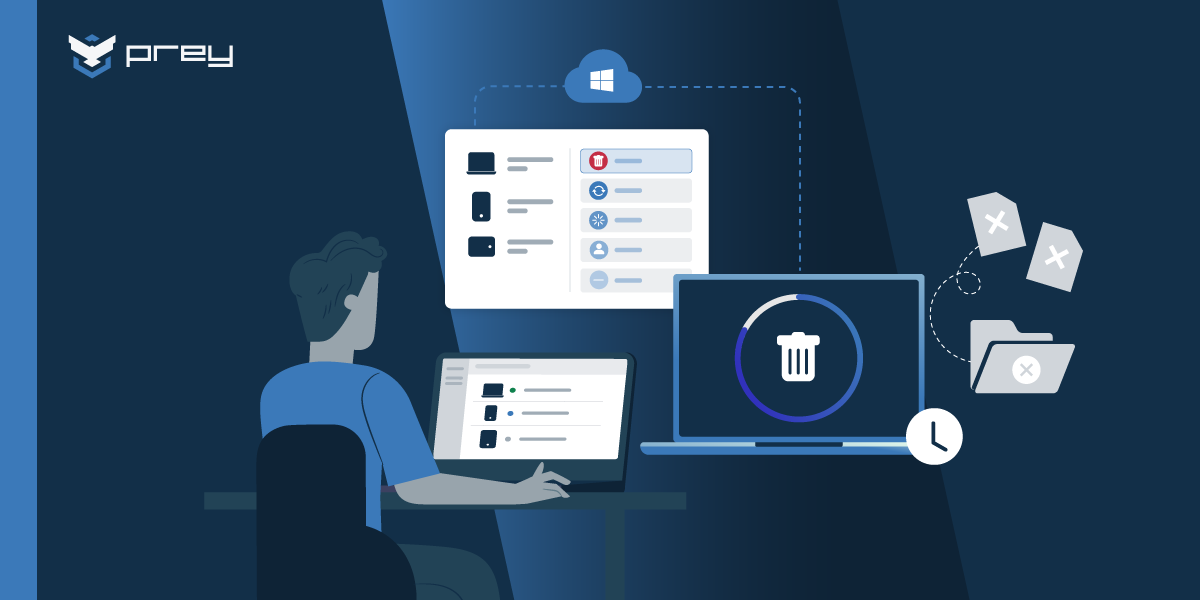
Somebody in your org has asked you to "just put MAM on everything" because enrollment is a pain and people hate handing their personal phones to IT. It's a fair ask. Mobile application management keeps work data inside the work apps and leaves the rest of the phone alone, which is exactly what most employees want from a BYOD policy.
But MAM protects the data inside the apps, not the device. That difference is easy to miss when you're comparing feature lists, and it shows up fast the first time a device goes missing. The company email on a lost personal phone can be wiped. The company laptop running MAM-only apps is a different story: no disk encryption to prove, no location, no lock.
This guide explains what MAM and MDM each control, what MAM leaves uncovered, and how to decide which one a device gets. Platform details come from Microsoft's Intune documentation, updated in July 2026, since Intune is the MAM most IT teams already have.
What is mobile application management (MAM)?
The confusion usually starts here. Mobile application management (MAM) is a way to secure company data inside specific apps, like Outlook, Teams or OneDrive, without managing the whole device. IT sets rules for those apps (PIN, copy and paste, saving, encryption) and can remove company data from them, while personal apps and photos stay untouched.

In practice, MAM works through app protection policies: each app protection policy targets a set of apps and a group of users. Microsoft describes them as rules that keep an organization's data "safe or contained in a managed app." The Intune app protection policies overview lists the typical controls:
Access: require a PIN or fingerprint to open corporate email or files.
Data movement: stop users from copying and pasting corporate data into personal apps, or saving it to personal storage.
Approved apps only: restrict company data to apps IT has approved.
Encryption: encrypt the data marked as corporate inside the app.
Selective wipe: remove company data from an app without removing the app or touching personal data.
The key word is "corporate." Intune only applies these rules in a work context. If the same person opens Outlook with a personal account, the policy doesn't touch it.
Intune MAM also works without enrollment. Microsoft's guide to MAM for unenrolled devices says this setup is typical for personal and BYOD devices, and it supports Android, iOS/iPadOS and Windows. There are still a few moving parts on the phone: iOS needs a broker app (Microsoft Authenticator) and Android needs the Company Portal app installed, even though the device itself isn't enrolled.
If you've seen threads titled "Need some help understanding MAM" in r/Intune, this is usually the knot: MAM isn't a lighter MDM. It's a different layer, aimed at data in apps rather than at the hardware.
What is MDM, and what does it control that MAM can't?
Now flip the view to the hardware. Mobile device management (MDM) enrolls a device and gives IT control over the whole thing: passcode rules, OS settings, disk encryption, Wi-Fi and VPN profiles, app deployment, compliance checks and a full wipe. MAM can't reach any of that, because it only sees the apps it manages.

Here's what that looks like day to day. With MDM, you can require a device passcode, push a VPN profile, deploy apps silently, block a jailbroken phone from accessing email, and wipe the device back to factory settings. Microsoft is explicit that a full device wipe "can only be achieved on devices enrolled with Intune mobile device management."
Without enrollment, there's no device to wipe, only app data.
The cost of that control is privacy and friction. Enrollment asks the user to hand a level of control over their phone to IT, which is why BYOD programs push back on it. For company-owned laptops and phones, that trade-off is the whole point: the company owns the hardware, so IT should be able to see and secure it. If you're building that out from scratch, our complete MDM guide covers enrollment, policies and rollout.
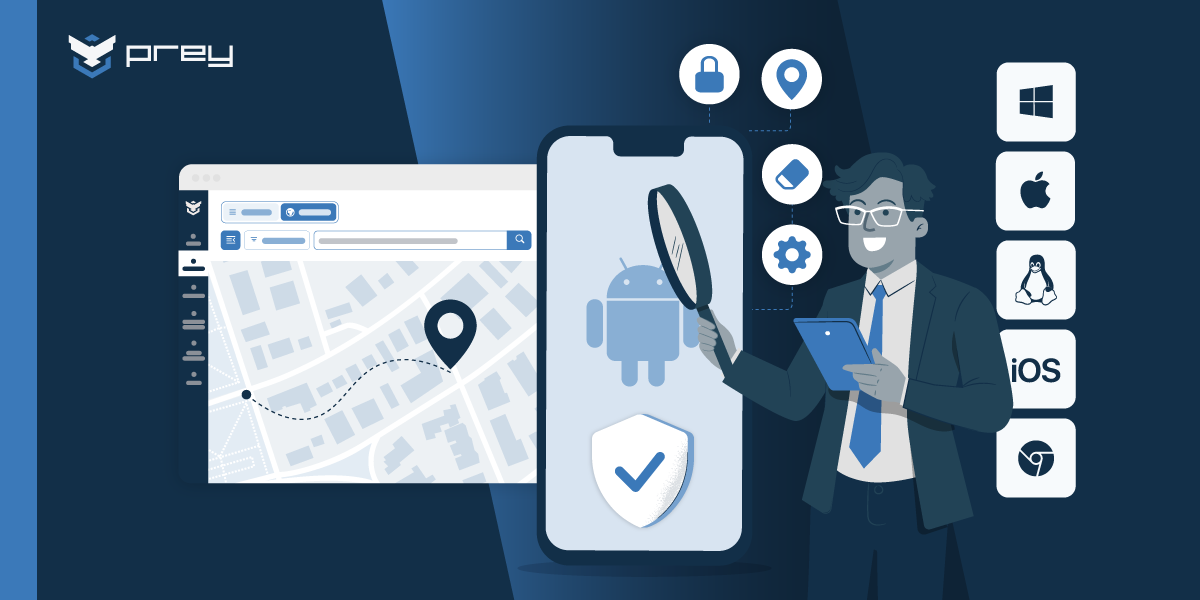
MDM is also where device-level security lives, and that's where Prey works. Prey runs as an agent on company devices across Windows, macOS, Linux, Android, iOS and Chromebook, and covers the things a lost or stolen device needs: always-on location, remote lock, remote wipe, factory reset for Windows, BitLocker management and hardware and software inventory. It sits next to your MDM, not inside an app.
MDM vs MAM: side-by-side
Feature lists blur together, so here's the comparison in one place. Whether you call it MDM vs MAM or MAM vs MDM, the short version: MDM manages the device, MAM manages the data in apps. Everything else in the table follows from that.
Two rows deserve a second look. "Lost or stolen device" is where most teams discover the gap: MAM's answer is to remove company data from the apps, which protects the data but leaves you with no idea where the device is. And "Disk encryption" matters for audits. MAM encrypts app data, but if an auditor asks you to prove that a missing laptop was encrypted, that evidence comes from the device layer: your MDM's compliance report, or a tool like Prey that reports BitLocker status on Windows.
The user experience row cuts the other way. MAM wins on privacy. Users keep full control of their personal phones, and IT never sees their photos, personal apps or location. That's why MAM is the default answer for BYOD, and why forcing MDM onto personal phones usually ends with people refusing to enroll. Our guide to BYOD and MDM goes deeper on that balance.
What MAM doesn't cover
This is the part feature lists skip. MAM doesn't cover anything outside the managed apps: it can't locate a lost device, lock its screen, encrypt the disk, inventory the hardware or wipe the whole device. Those are device problems, and they need MDM or a device security tool on hardware the company owns.
Think about a sales rep with a personal iPhone and Outlook under a MAM policy. The policy requires an app PIN and blocks copying customer emails into WhatsApp. The phone gets left in a taxi. You run a selective wipe, the company mailbox disappears from Outlook the next time the app connects, and you're covered. The phone itself belongs to the rep, so tracking it isn't your job.
Now take a company-owned Windows laptop where someone set up MAM in a few apps but never enrolled the device. The laptop is stolen from a car.
MAM can pull company data from those apps, but you can't confirm the disk was encrypted, you can't see where the laptop is, you can't lock it and you can't wipe the rest of the drive. Files saved outside the managed apps are just sitting there. The same theft is now a device problem.
That second case is the one Prey is built for. On a company device with the Prey agent, you can see its last known location, lock it with a message on screen, wipe it remotely, run a factory reset on Windows and confirm BitLocker status, all from one dashboard and with a log of every action for the incident report. MAM handles the apps; Prey handles the hardware. If you want the background on why wiping works this way, see what remote wipe is and when you need it.
Quick win: pull a list of every company-owned device that only has MAM (no enrollment, no device agent). Each one is a device you couldn't locate, lock or prove encrypted if it disappeared tomorrow. Those go to the top of your enrollment list.
MDM or MAM? Decide by who owns the device
Most "MDM vs MAM" debates go in circles because they compare features. The cleaner question is ownership: personal devices get MAM, so company data is protected without touching personal data. Company-owned devices get MDM, plus MAM on top if you need extra data controls. Microsoft recommends exactly that split.
Microsoft's own guidance is blunt: MAM for unenrolled devices isn't recommended as the only method for devices the organization owns. Those should be enrolled, and if you want more security, you use MDM and MAM together. Here's how that plays out across common cases:
Personal phones and tablets (BYOD): MAM with app protection policies. Add conditional access so only protected apps reach company data.
Company-owned phones: MDM enrollment, plus MAM policies on Outlook, Teams and OneDrive if the data is sensitive.
Company-owned laptops (Windows, macOS, Linux): MDM plus a device security layer like Prey for location, lock, wipe and encryption evidence. MAM on its own is the wrong tool here.
Shared devices (school iPads, kiosks, frontline tablets): MDM. App protection policies have restrictions on shared and dedicated device setups, so check Microsoft's support notes before relying on them.
Contractors and short-term staff on their own devices: MAM, so offboarding is a selective wipe and nothing more.
Compliance points the same way. Frameworks like HIPAA and GDPR care about the data, and MAM helps protect data inside apps. But when you need evidence that a device holding patient or customer data was encrypted, or where it was last seen, that record comes from the device layer, not from app policies. In Prey, that's the device's location history and the log of every lock or wipe you ran.
Quick win: add an "owner" column to your device inventory (company or personal) and map each value to MDM or MAM. Anything company-owned that maps to MAM-only is a gap you can fix this week. If your inventory lives in a spreadsheet, start with our software inventory best practices.
Using MDM and MAM together
Running both sounds like double the work. In practice, using MDM and MAM together is how most mixed fleets end up: MDM enrolls and secures company-owned devices, while MAM protects company data on personal phones and adds app-level controls on top of enrolled ones. Intune supports both in the same tenant.
Microsoft's own example is an employee with a company phone and a personal tablet. The company phone is enrolled in MDM and also gets app protection policies. The personal tablet gets app protection policies only. You can target stricter MAM settings at unenrolled devices and lighter ones at managed devices, so people aren't hit with double PIN prompts on the phone IT already controls.
The tool count is where it gets messy. In a 2026 survey of 15 IT and security leaders that we ran, 11 used Intune, and most were running at least one other tool alongside it. Eight of the 15 rated their mixed-OS management as inconsistent or poor. That's the reality: Intune covers policy and apps well, and teams add a device layer for what Intune does slowly or not at all. We wrote about how to keep that sane in running multiple MDM tools.
MSPs see this at scale. A typical client has staff on personal phones (MAM through the client's Microsoft 365) and a fleet of laptops the MSP manages. The MSP keeps MAM for the BYOD side and uses a multi-tenant device tool like Prey for the hardware across every client, so location, lock and wipe work the same way no matter which client the device belongs to.
Quick win: in Intune, split your app protection policies by device management state, with one policy for unenrolled devices and one for managed ones. It's a setting when you create the policy, and it stops you applying BYOD-level friction to company phones.
What MDM and MAM cost
Budget is usually the tiebreaker. If you already pay for Microsoft 365 with Intune, MAM costs nothing extra: app protection policies come with the Intune license. Intune Plan 1 is listed at $8 per user per month standalone, and many Microsoft 365 business and enterprise plans already include it.
The license is rarely the expensive part. The real costs are:
Deployment time: MAM is quick to roll out because there's no enrollment. MDM takes longer, especially for existing devices that need to be enrolled one by one.
Support load: MAM generates tickets about app PINs and blocked copy and paste. MDM generates tickets about enrollment and device restrictions.
The cost of the gap: a company laptop that wasn't covered at the device level, then went missing, costs far more than any license. Replacement hardware is the small part; the data exposure and the incident response are the big part. That's the gap a device layer like Prey is priced against.
When you compare total cost, price the gap, not just the seats. Our guide to choosing MDM for small businesses breaks down how SMB teams weigh licenses against setup and support time, and the MDM implementation checklist helps you estimate the rollout.
Where Prey fits
Prey doesn't replace MAM, and it isn't trying to. Prey is the device layer: it secures company-owned laptops, phones and tablets when they're lost, stolen or not returned. It works alongside Intune MAM, which keeps handling the data inside apps on personal phones.
Here's the split in practice. MAM protects company data in Outlook, Teams and OneDrive on personal phones. Prey covers the hardware the company owns, across Windows, macOS, Linux, Android, iOS and Chromebook:
Always-on location with history, so you know where a device was last seen.
Remote lock and remote wipe, plus full factory reset on Windows.
BitLocker management on Windows, so you can show the disk was encrypted.
Hardware and software inventory, so you know what each device runs and who has it.
An action log that records each lock, wipe and location request for audits.
If you already use Intune, this is the gap Prey was built for. Intune handles policy and apps; Prey makes the device itself traceable and recoverable. For how Intune's own device actions behave, including why a wipe can sit pending for a while, see our guide to Intune wipe vs retire vs fresh start. And if you're still mapping out the wider landscape, MDM vs UEM vs EMM explains how these categories fit together.
Conclusion
MDM vs MAM isn't really a contest. MAM protects the data inside the apps; MDM protects the device. On a personal phone, protecting the apps is enough, because the device was never yours to track. On a company laptop, it isn't: the first time one goes missing, you'll want to know where it is, lock it and prove it was encrypted.
So decide by ownership. Put MAM on personal devices, enroll the devices the company owns, and add a device layer like Prey for location, lock, wipe and evidence. That gives you visibility over the hardware, control when something goes wrong and the evidence an auditor will ask for.
FAQ
What is mobile application management (MAM)?
Mobile application management (MAM) secures company data inside specific apps without managing the whole device. IT applies app protection policies, such as requiring a PIN, blocking copy and paste into personal apps and encrypting app data, and can remove company data from those apps. Personal apps and data stay untouched.
What is the difference between MDM and MAM?
MDM manages the whole device after enrollment: passcode, settings, disk encryption, app deployment and full wipe. MAM manages only company data inside approved apps and doesn't require enrollment. MDM suits company-owned devices; MAM suits personal devices where users won't hand control of the phone to IT.
Can you use MAM without MDM?
Yes. Intune app protection policies work on devices that aren't enrolled in any MDM, which is the usual setup for BYOD. On iOS the user needs Microsoft Authenticator as a broker app, and on Android the Company Portal app, but the device itself stays unmanaged. You can also run both: enrolled company devices can get MDM and app protection policies at the same time.
Does MAM work on Windows?
Yes. Microsoft lists Windows as a supported platform for MAM on unenrolled devices, alongside Android and iOS/iPadOS. That said, Microsoft doesn't recommend MAM as the only protection for organization-owned devices, so company Windows laptops should still be enrolled and secured at the device level.
Can MAM wipe a lost phone?
No. MAM can run a selective wipe that removes company data from managed apps, but it can't wipe, lock or locate the phone itself. A full device wipe needs MDM enrollment. On company-owned devices, a device security tool like Prey adds location, remote lock and remote wipe.
Should company-owned devices use MAM or MDM?
MDM. Microsoft recommends enrolling organization-owned devices and adding MAM on top only when you need extra data controls. MAM alone leaves company hardware without disk encryption evidence, location, lock or full wipe, which matters the first time a laptop or phone goes missing. Prey covers that device layer on company-owned hardware.
See every company device, not just the apps. Prey adds always-on location, remote lock and wipe to the fleet you already manage. Request a free trial